How to get started
Step 1: If you are currently signed in slack using an outside email, please sign out of slack on all devices (your laptop, desktop, tablet and/or mobile device)
Step 2: Verify your official UCLA email.
To do this please go to https://accounts.iam.ucla.edu sign in and verify that your email is set to your g.ucla.edu. If the email is not your ucla email
Step 3: Go to www.my.ucla.edu and sign in, go to settings on the top right hand of the screen and down to official email. Click on the email that is there and change it to your username@g.ucla.edu.
Step 4: Login to ucla.slack.com.
Accessing Slack is easy. You can use a browser, the Desktop Application, or download the app on your mobile device. The easiest and fastest method is using a browser.
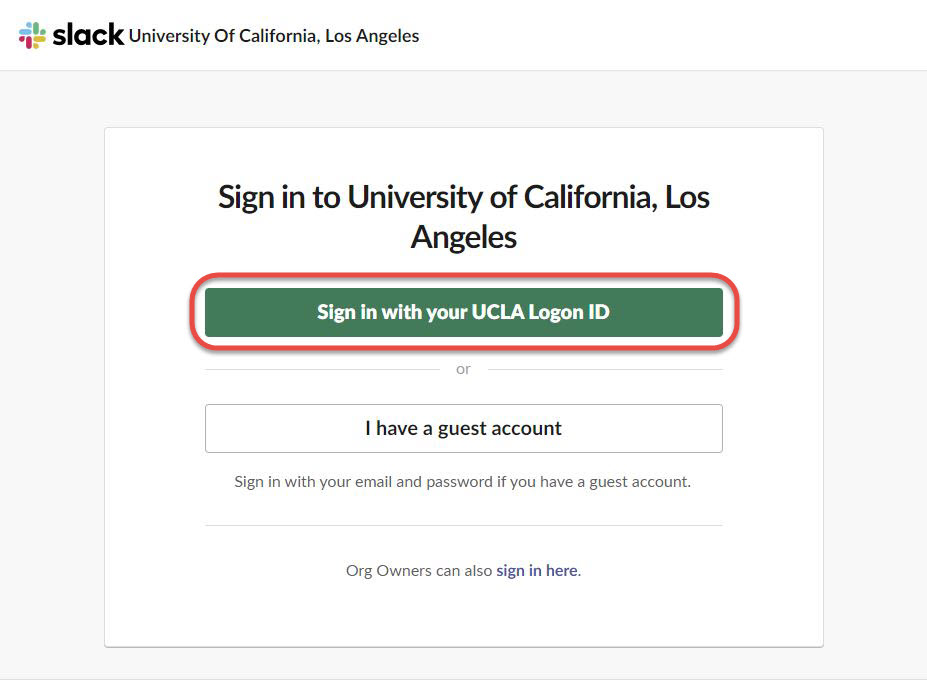
- In the browser of your choice click in the address bar and go to ucla.slack.com
- Click on "Sign in with your UCLA Logon ID"
- Enter your UCLA Logon ID and password and click "Sign In"
Note: If you have forgotten your credentials, visit accounts.iam.ucla.edu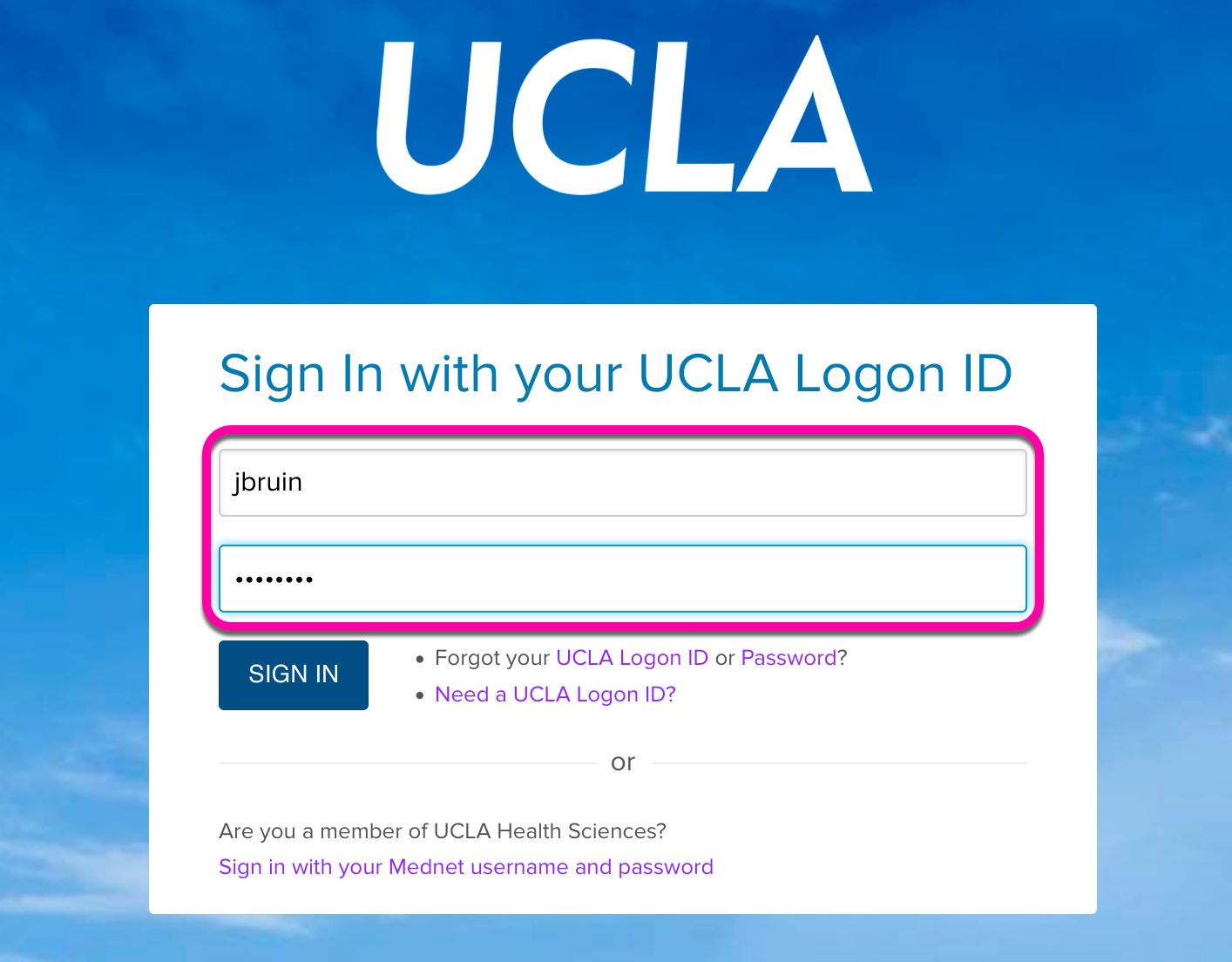
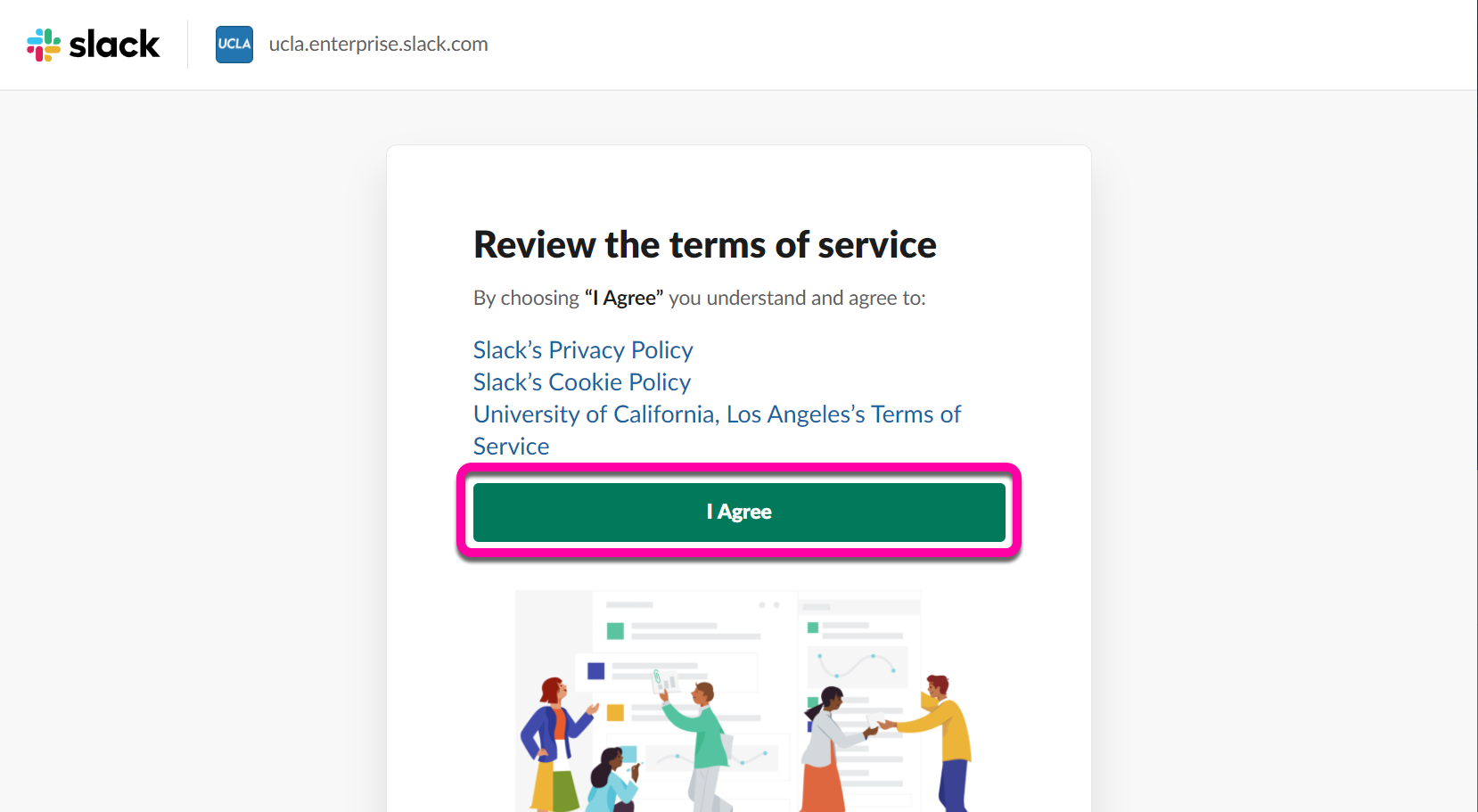
- If this is your first time signing into the UCLA Slack environment, you will be prompted to "Review the terms of service". Click "I agree".
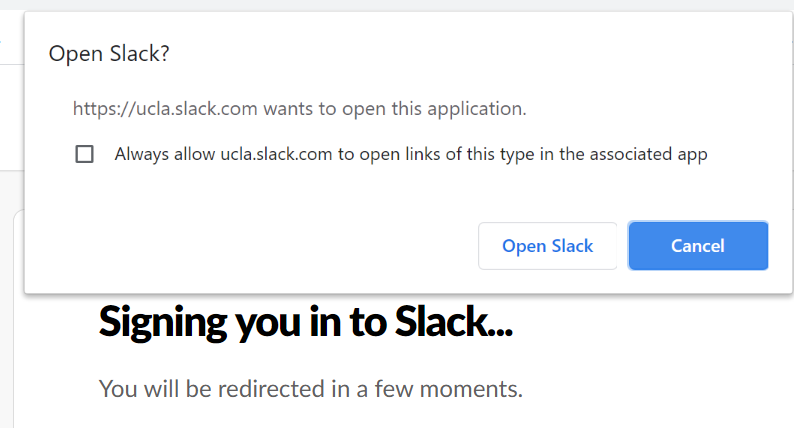
- If you have the Slack Desktop App installed you may receive the popup option below. Check the "Always allow ucla.slack.com to open links of this type in the associated app" option if you would like slack links to lauch in the Slack Desktop application. Click the "Open Slack" button.
Congratulations!
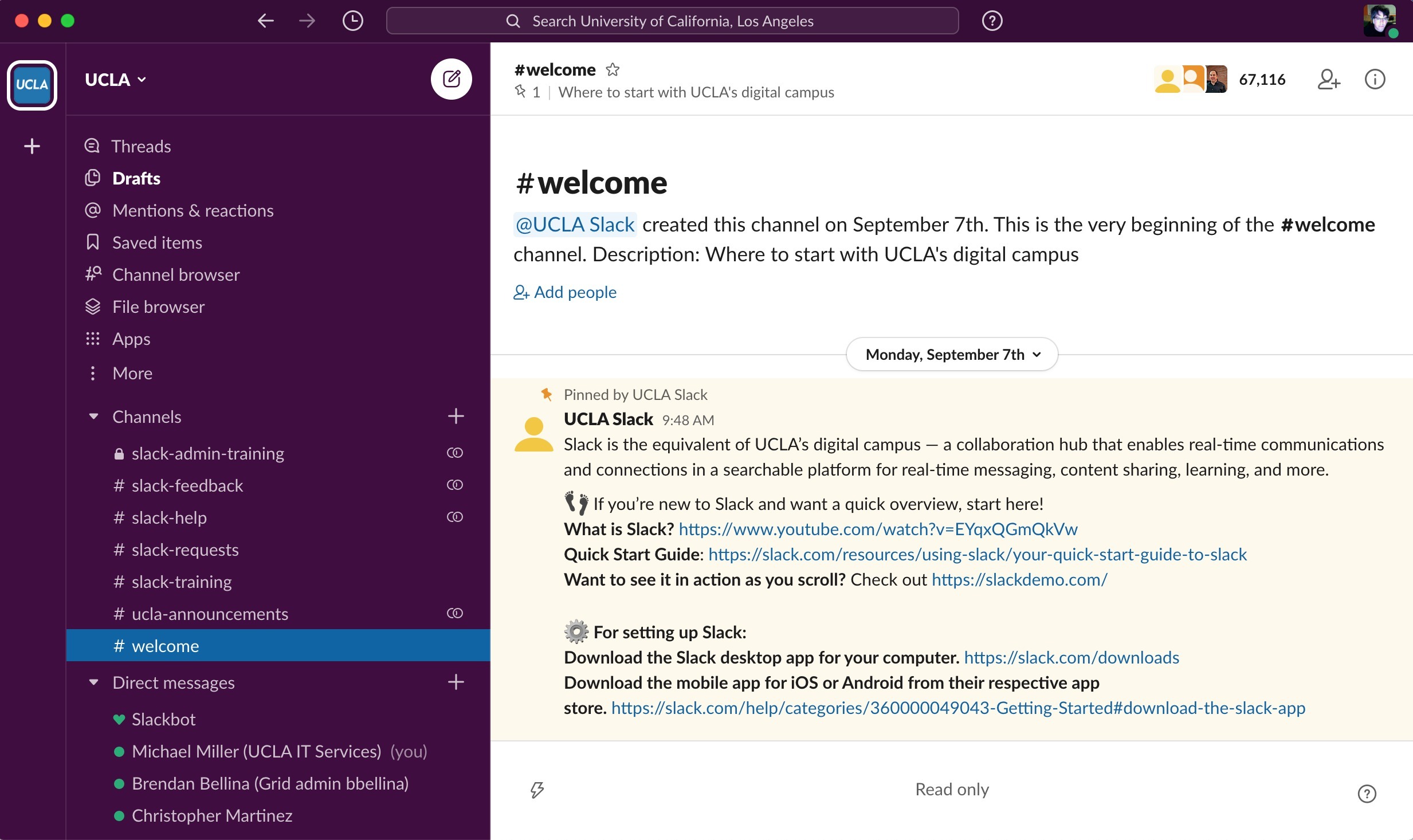
You will now find yourself in #welcome channel of the UCLA community Workspace.
Step 5: Email to support@aud.ucla.edu from your g.ucla account and we will send you an invite to the ideas slack workspace.
Accept the initiation and log into the workspace with your g.ucla email.
If you need any further assistance, please feel free to email support@aud.ucla.edu
Was this article helpful?
That’s Great!
Thank you for your feedback
Sorry! We couldn't be helpful
Thank you for your feedback
Feedback sent
We appreciate your effort and will try to fix the article